Vyslovuj® - First steps
Video tutorial for speech therapists - How to create an exercise plan
Video guide for parents - How to create an exercise plan
1. Completion of registration
Open the email with the subject line "Register on Vyslovuj®".
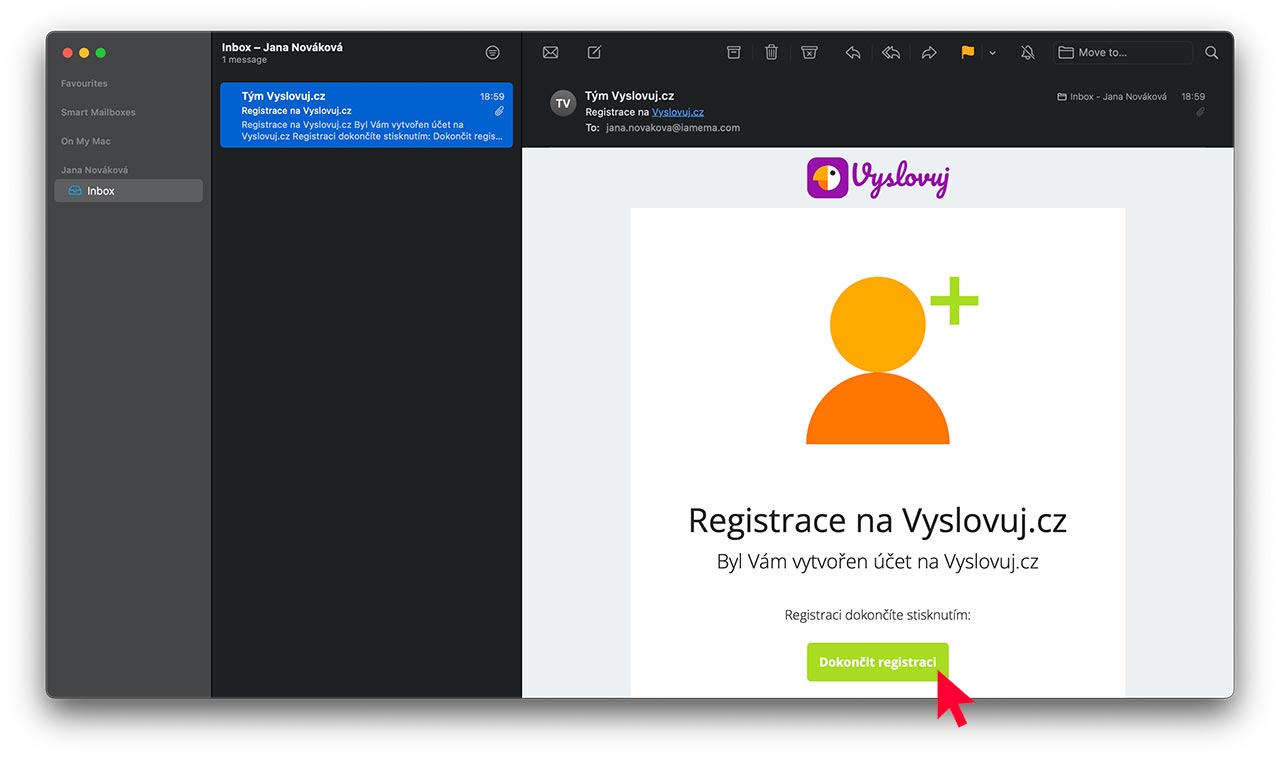
Click on the green "Complete Registration" button.
2. Password
Now you need to fill in the password you will use to access Vyslovuj®.
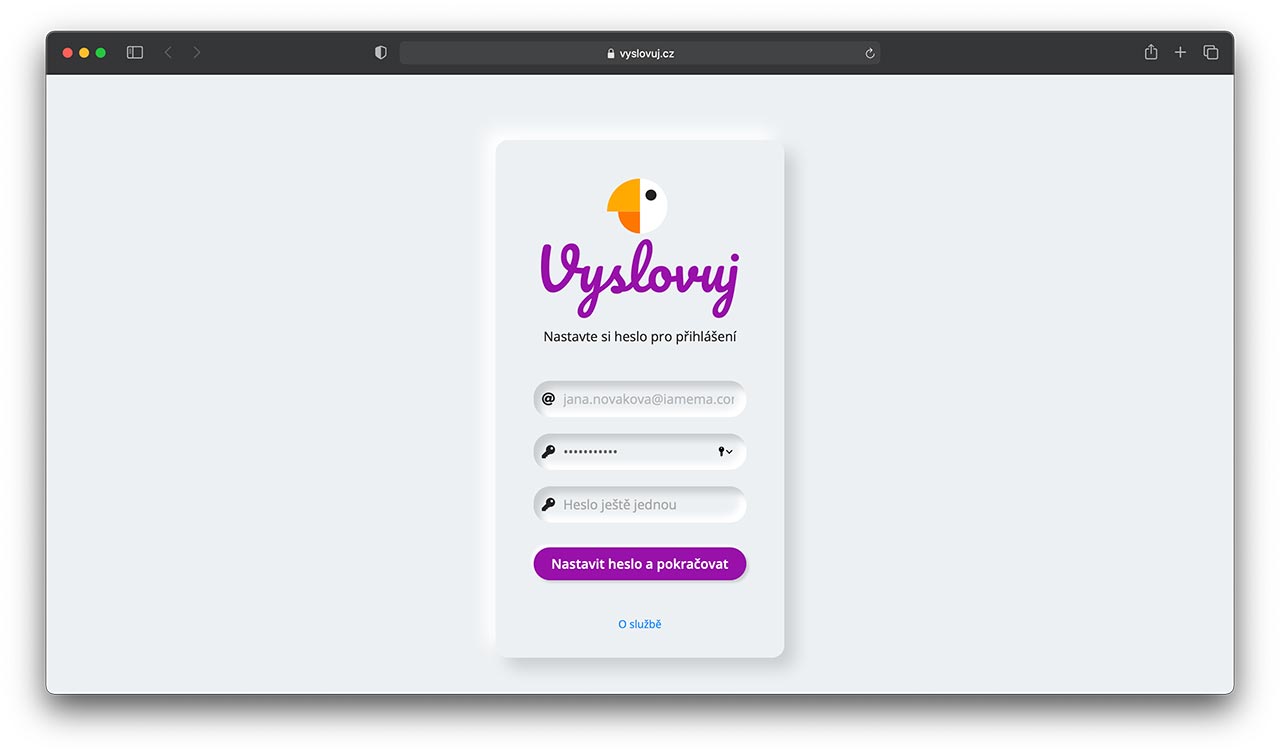
You can make up any password you want, but it must be at least 8 characters long and contain upper and lower case letters and numbers.
3. Control
The password needs to be filled in again for verification.
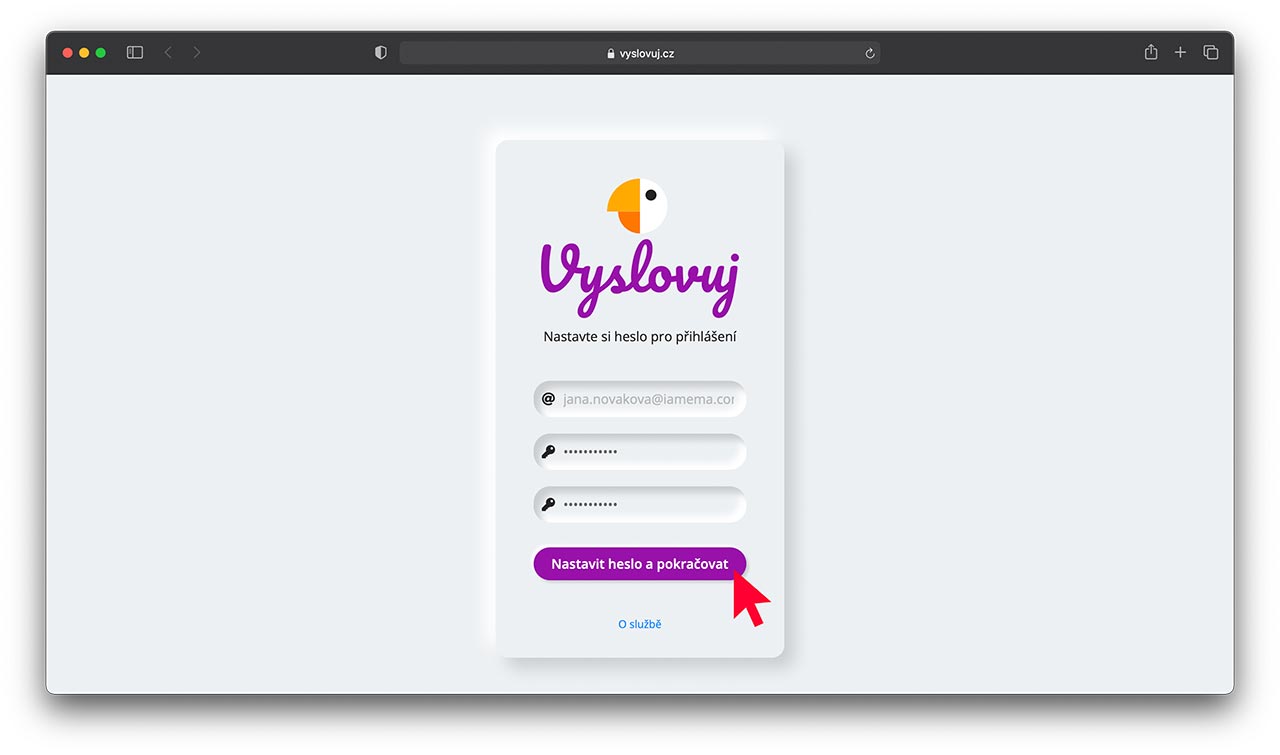
Once both passwords are filled in, click on the "Set Password and Continue" button.
If everything is in order, you will be taken to the settings page.
4. Settings
Some settings relate to the processing of your personal data, others allow the sending of exercise results.
Each setting has a short explanatory description which you can view by clicking on the text in the grey box.
The only setting that is mandatory is "I agree to the terms of use of the speech therapy service Vyslovuj®".
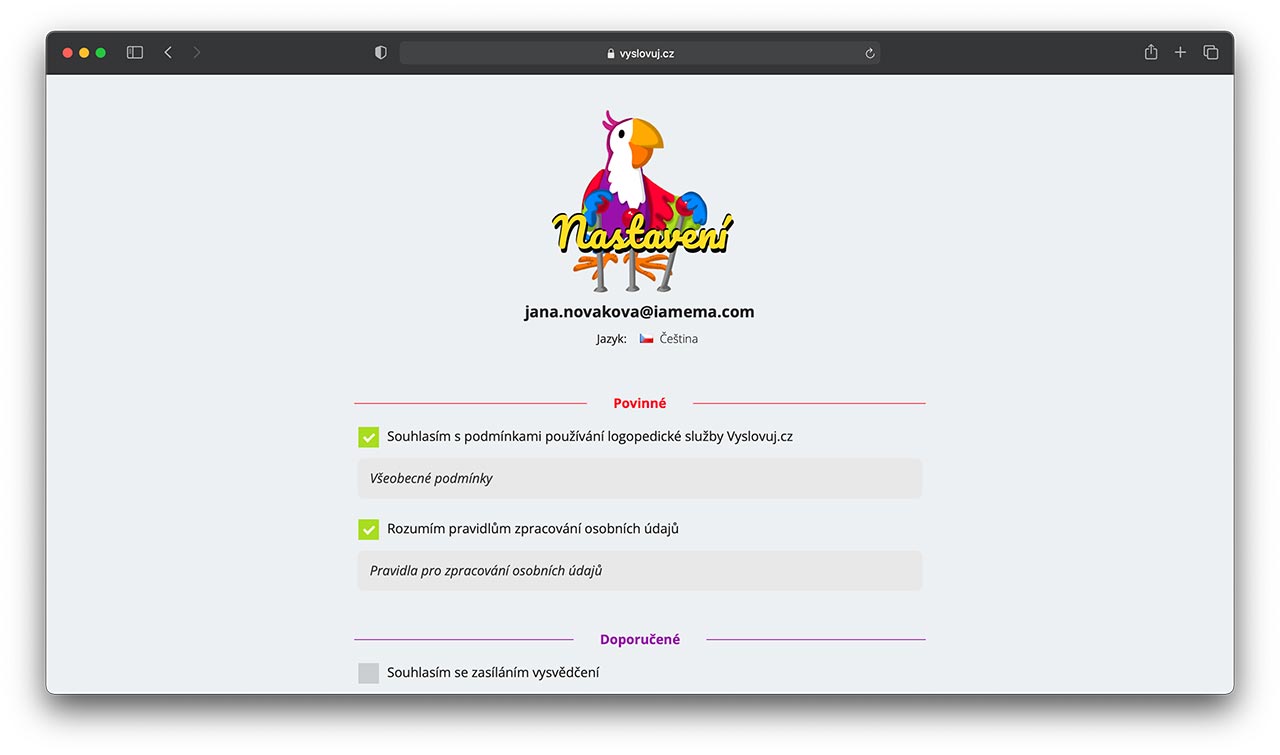
To confirm the settings, click "Continue" or "Save settings only".
You can return to the settings at any time later and change the options.
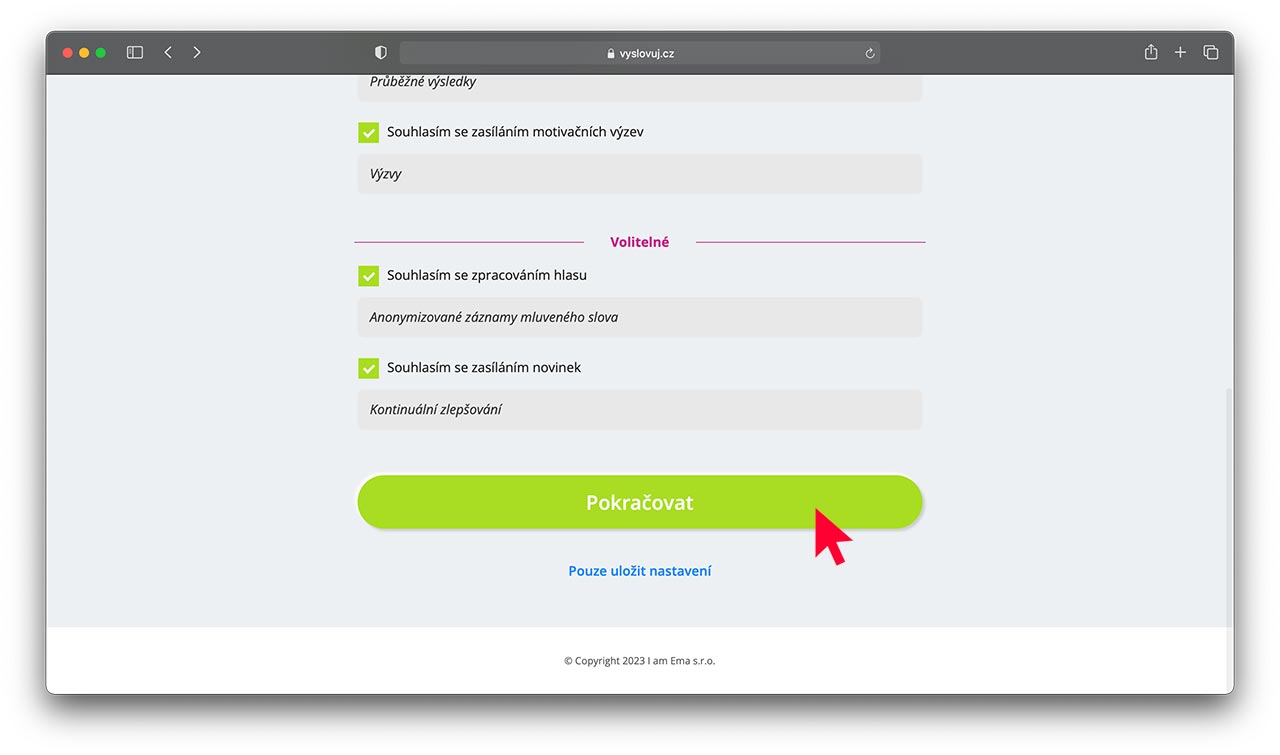
Click on the "Continue" button.
5. Administration
You are now on the homepage for therapists.
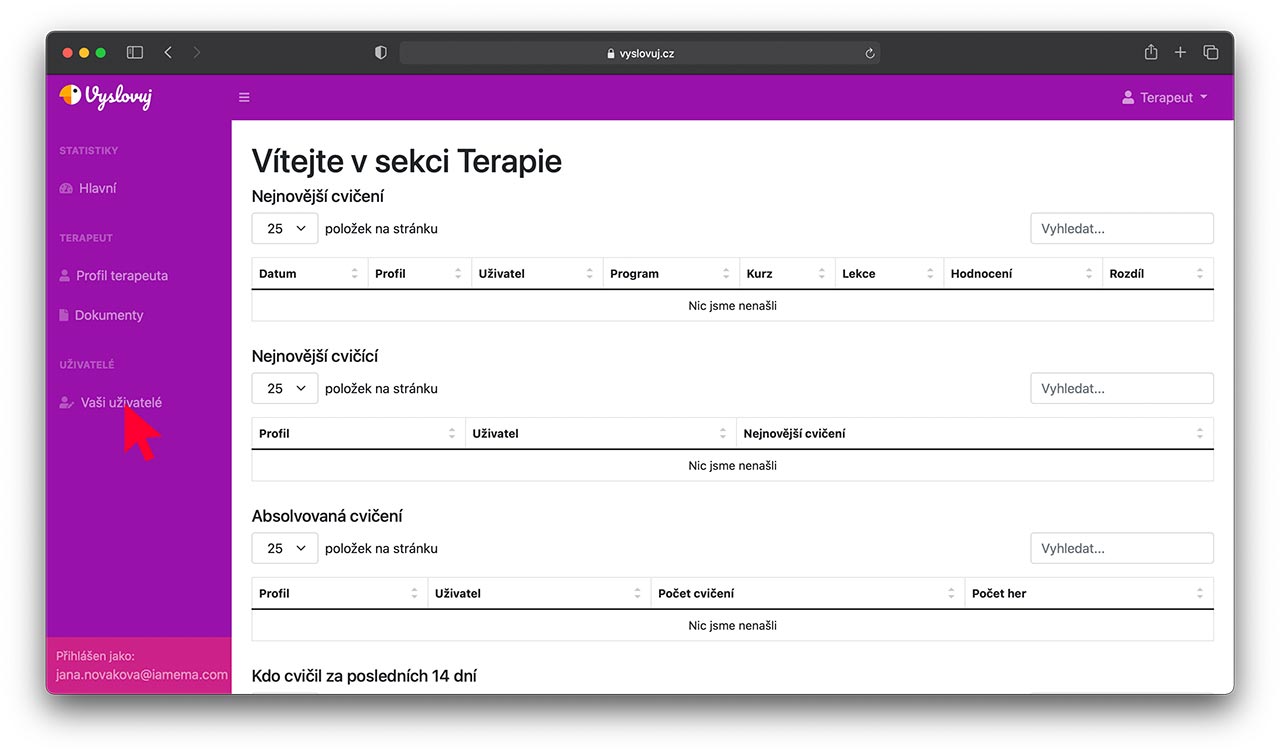
Click on the "Your Users" button on the left side of the page.
6. Users of
You will see an overview of your users.
The first time you use Vyslovuj®, you are your only user.
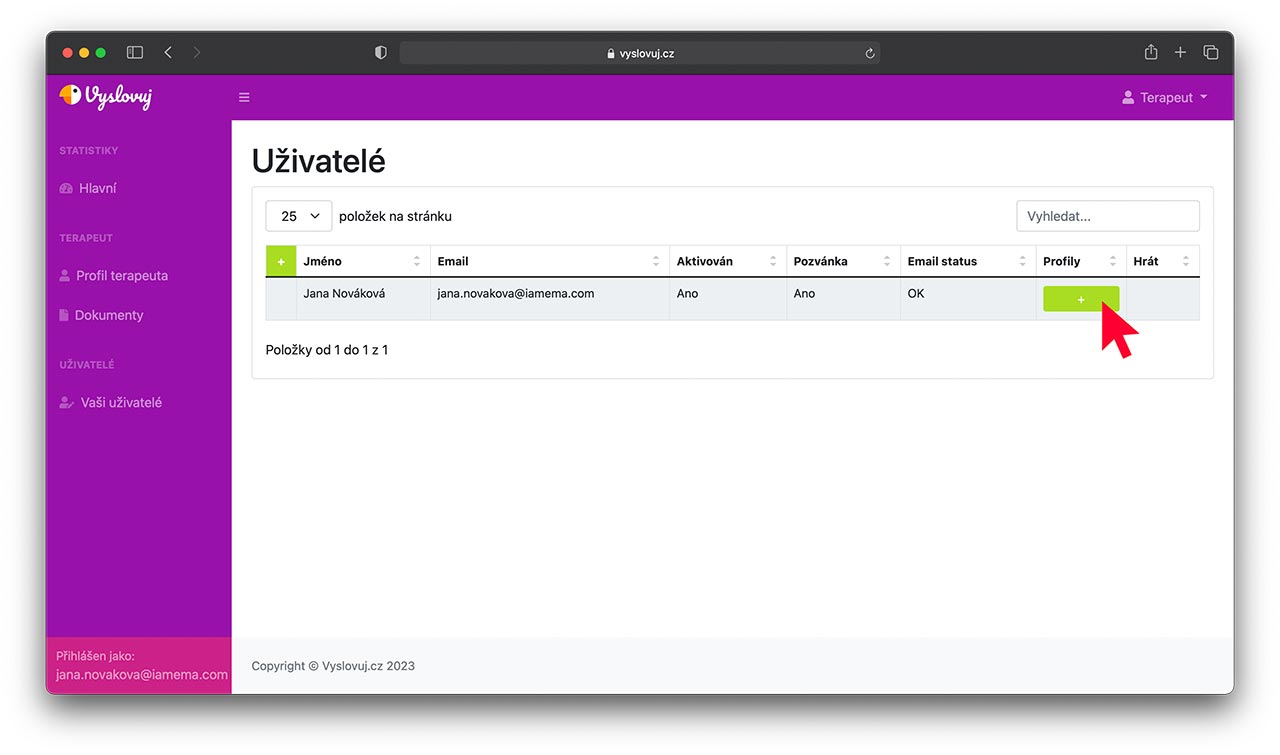
Click on the green "+" button marked with a red arrow.
7. New profile
You will see the user's profile page.
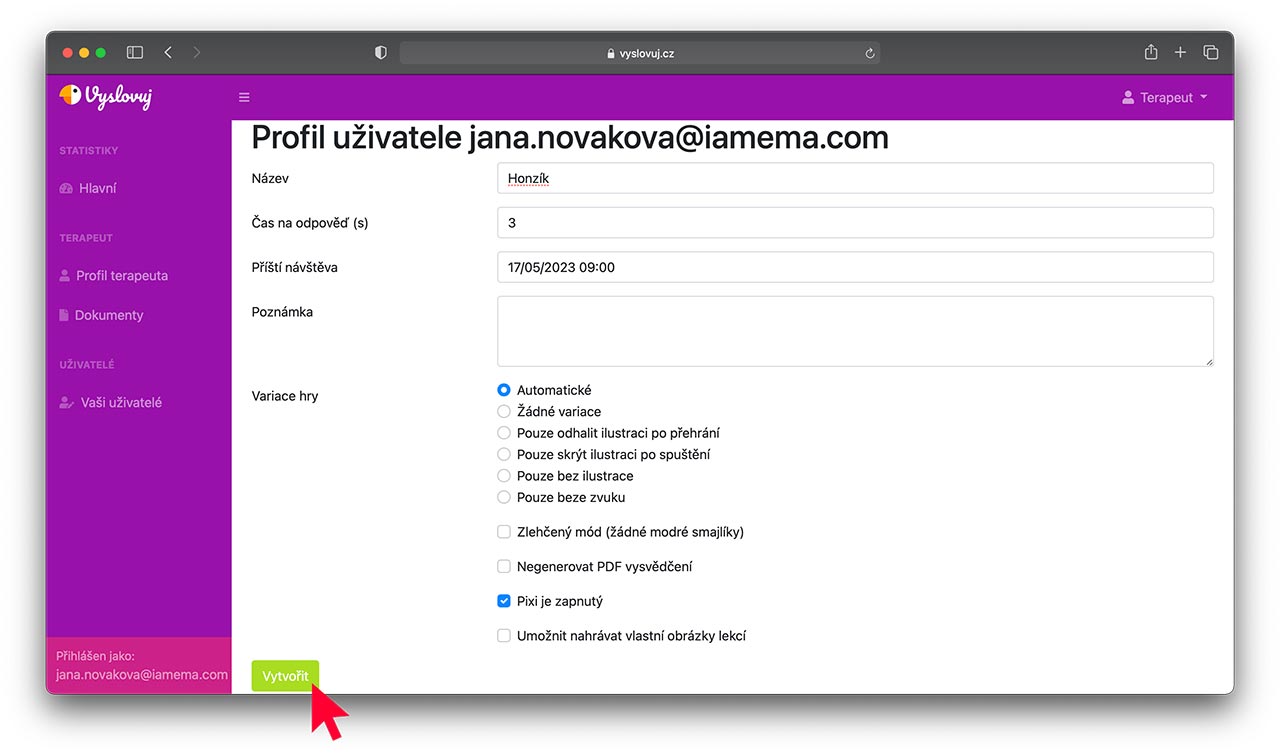
To get started, just fill in a name, usually the child's name, and confirm with the "Create" button.
8. Exercise plan
On the same page, you will see a green bubble confirming that the profile has been created.
To select the lessons that are up-to-date for your profile, scroll down.
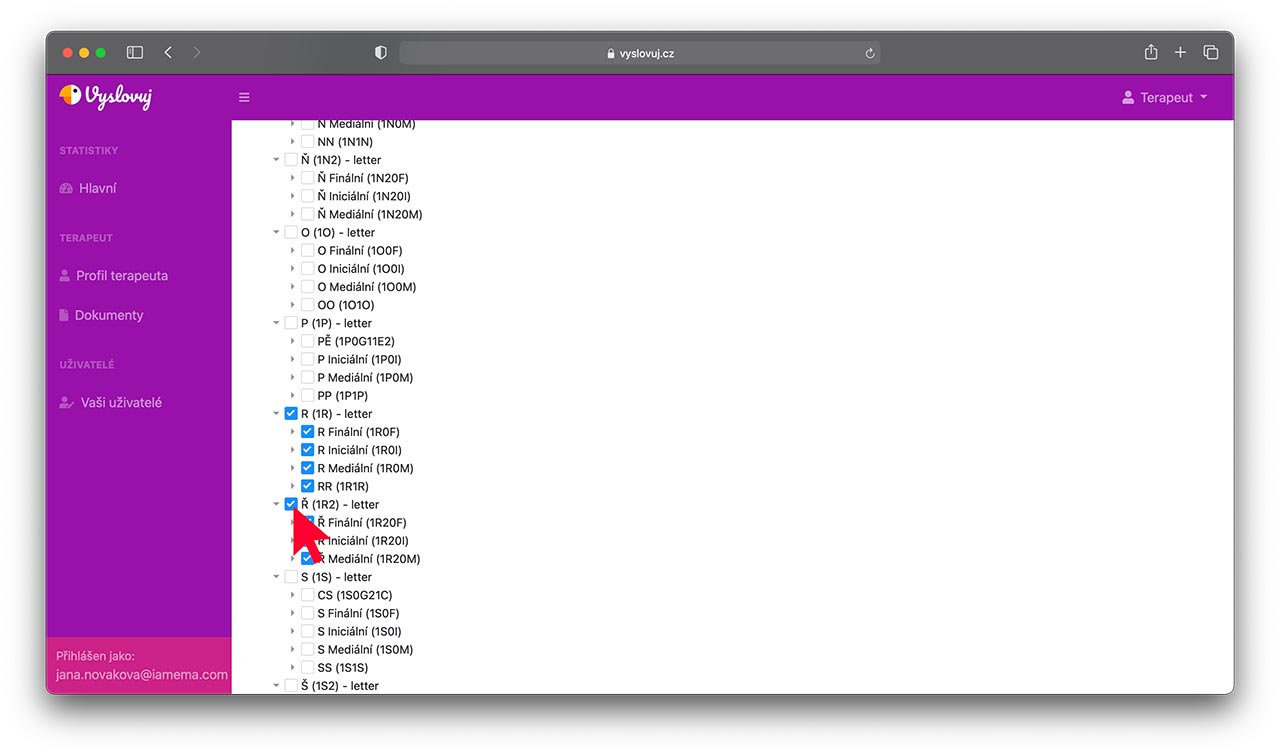
Tick the syllables according to the child's needs.
9. Active exercises
From the selected programs, select the ones that are currently available for the profile.
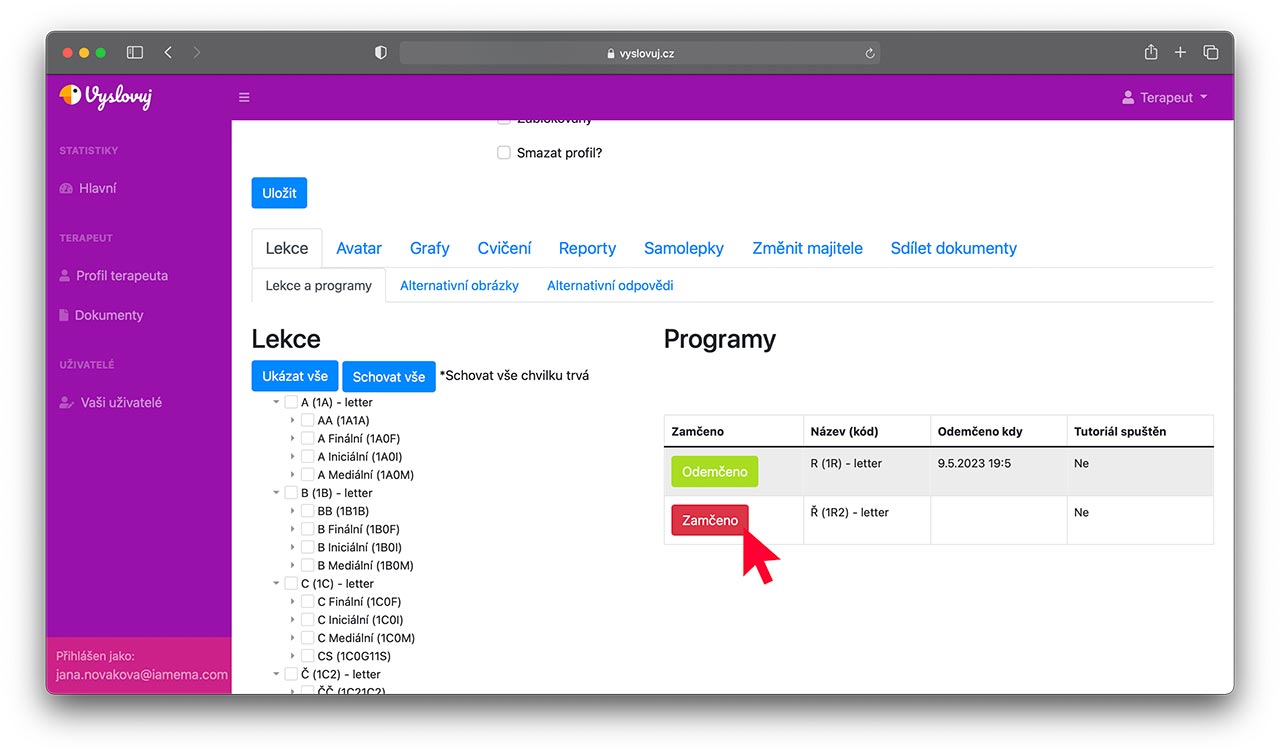
Just click on "Locked" next to the list of Lessons (or below, depending on the view) in the Programs section, and the "Unlocked" box will appear next to the selected lessons.
10. Exam
Congratulations! You have created your first exercise plan.
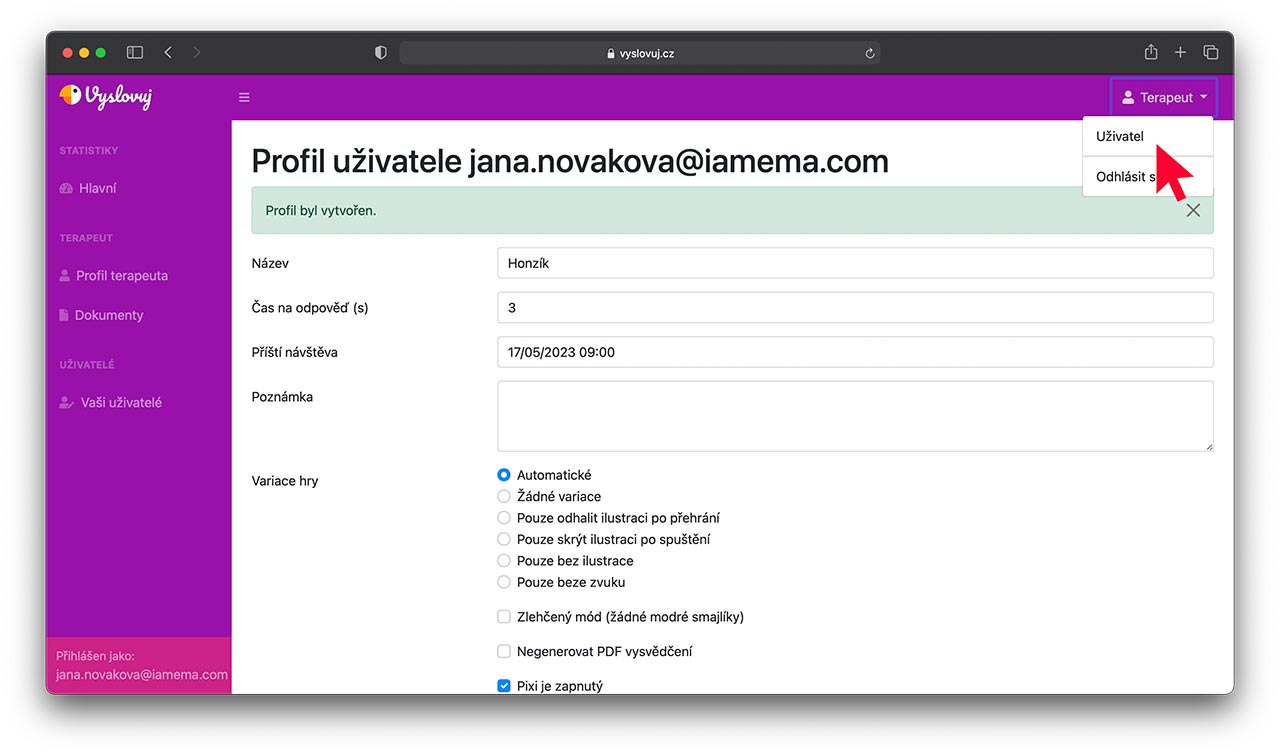
Just click on the Therapist button at the top of the page and then click on the User button.
11. Game
Now you can test the exercise plan (profile) you have created.
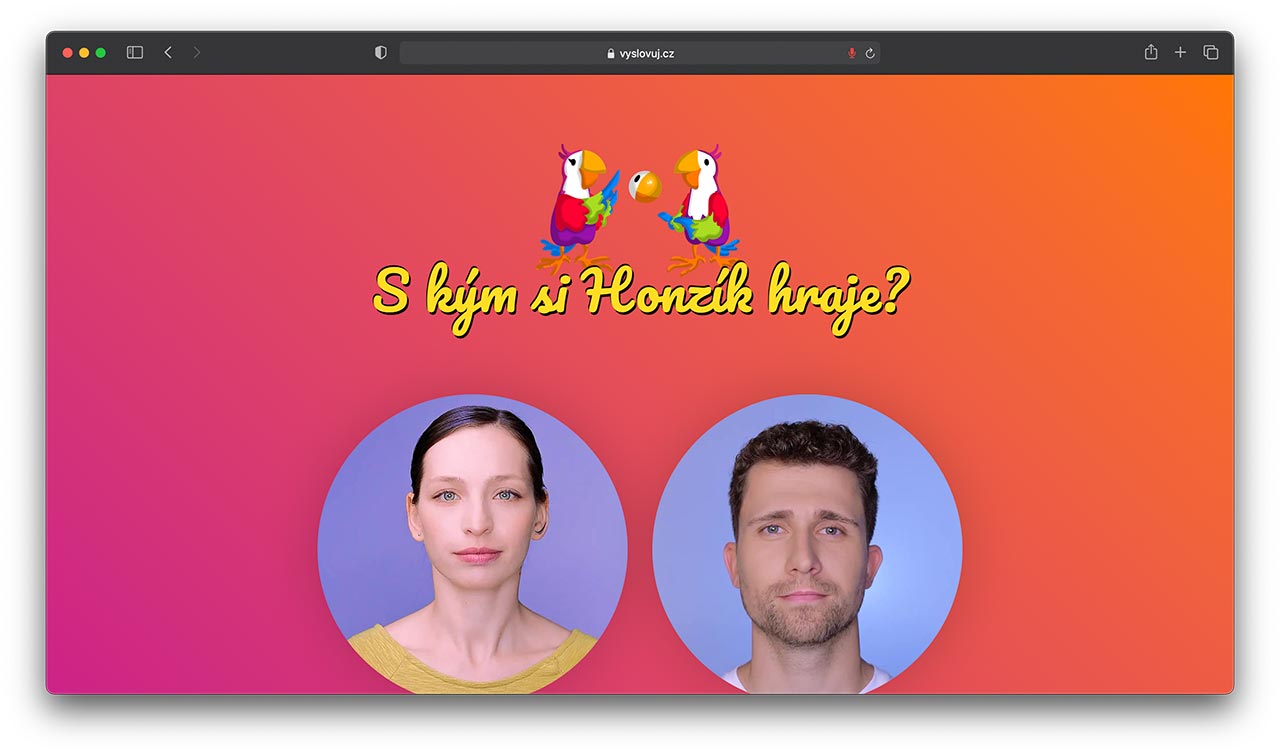
More information about the game can be found at Api's exercise guide.
12. Administration
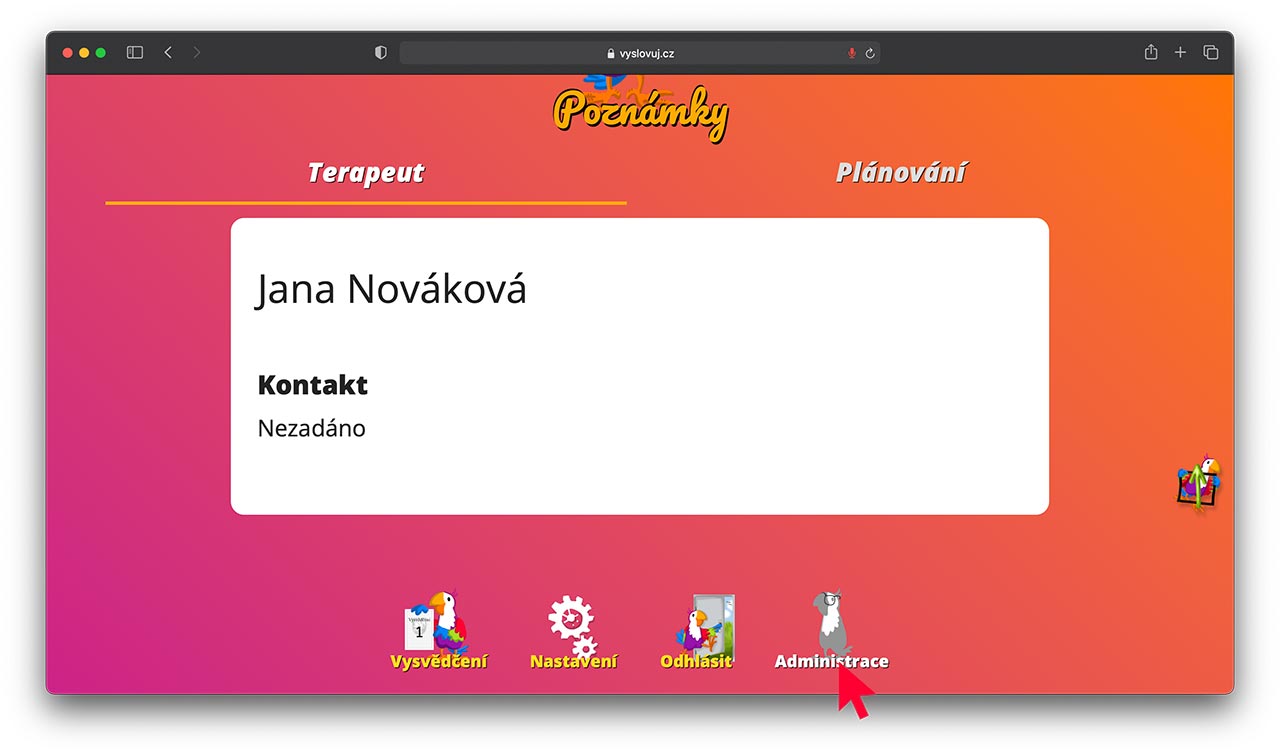
To add another user or profile, click on the Administration icon.
This, along with other options, can always be found at the bottom of the page you are currently on.
13. New user
On the therapist's homepage, click on "Your users" again.
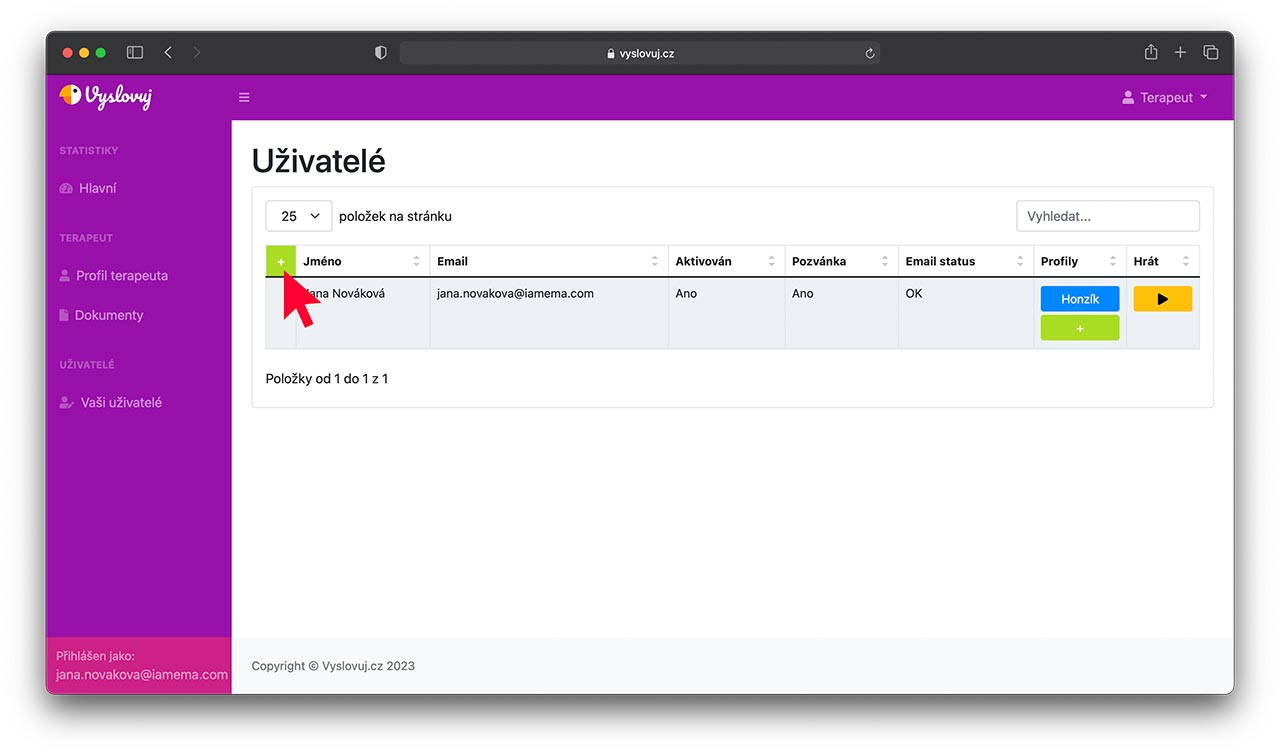
Then click on the second green "+" button in the top left corner of the table.
14. Creating a user
To create a new user, simply enter their name and email address.
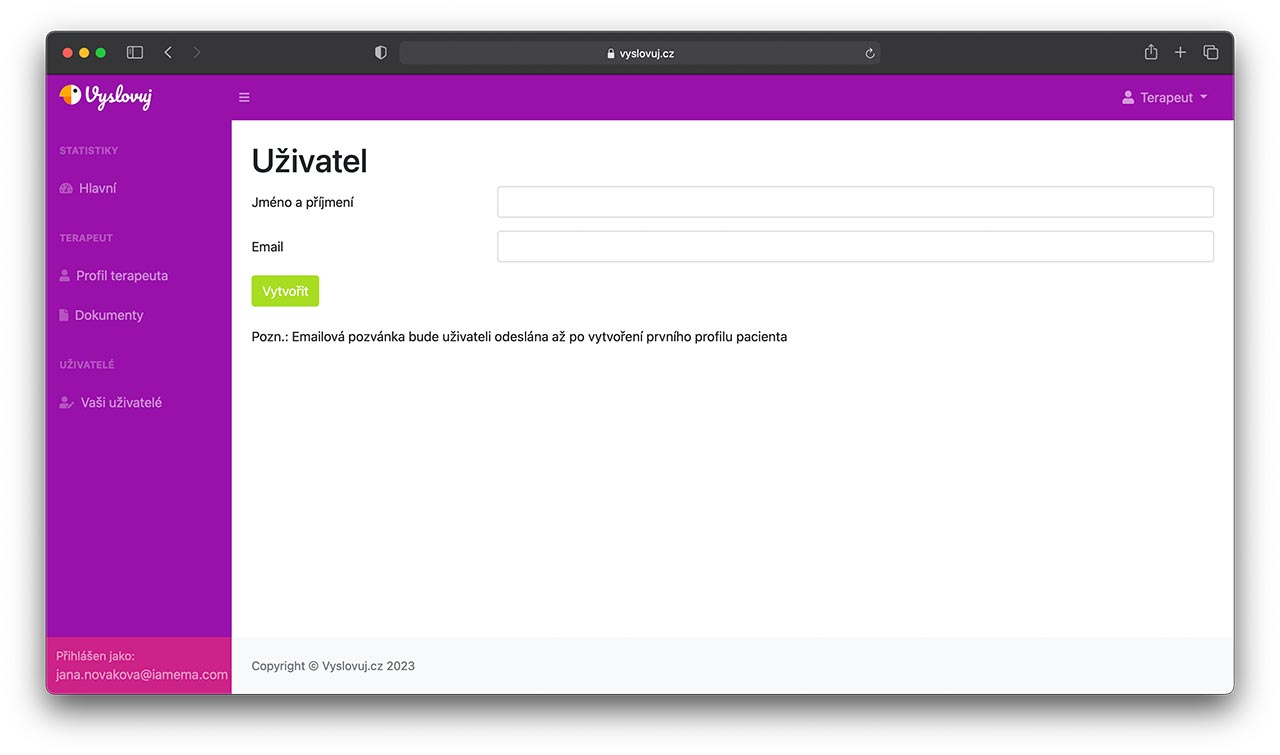
You create a workout plan (profile) for a new user in the same way as you did for yourself.